




Artificial intelligence has transformed creative workflows, making professional photo editing faster, smarter, and more accessible than ever. Learning how to use AI in Photoshop is no longer just a trend—it’s becoming an essential skill for photographers, designers, marketers, content creators, and businesses that want to produce high-quality visuals efficiently.
Table Of Content
- Quick Answer
- Key Takeaways
- How AI Has Changed Photoshop Editing
- Why Adobe Firefly Makes a Difference
- Essential AI Tools Available in Photoshop
- Generative Fill
- Generative Expand
- Remove Tool and Neural Filters
- Step-by-Step: How to Use AI in Photoshop Effectively
- Step 1: Prepare Your Image
- Step 2: Select the Right AI Feature
- Advanced AI Workflows for Faster and Smarter Editing
- AI vs Traditional Photoshop Editing
- Real-World Examples of Using AI in Photoshop
- Benefits of Learning How to Use AI in Photoshop
- Risks and Limitations of Photoshop AI
- Common Mistakes Beginners Should Avoid
- Expert Insights for Better AI Editing Results
- Frequently Asked Questions
- 1. Is Photoshop AI free to use?
- 2. Do I need design experience to use Photoshop AI?
- 3. Can AI replace professional photo editors?
- 4. Which Photoshop AI feature is best for beginners?
- 5. Does Photoshop AI work for commercial projects?
- 6. Can AI improve old or damaged photographs?
- Final Verdict
Adobe Photoshop now includes a growing collection of AI-powered tools through Adobe Firefly, allowing users to remove unwanted objects, generate new backgrounds, expand images beyond their original size, replace elements with simple text prompts, and automate time-consuming editing tasks. Instead of spending hours on manual edits, AI helps you focus more on creativity while handling repetitive work.
Whether you’re editing product photos for an online store, creating social media graphics, restoring old images, or designing marketing materials, Photoshop’s AI features can significantly improve your workflow. In this guide, you’ll learn how these tools work, when to use them, their advantages and limitations, and practical tips to achieve professional-quality results without extensive editing experience.
Quick Answer
Using AI in Photoshop is straightforward. Open your image, choose an AI-powered feature such as Generative Fill, Generative Expand, Remove Tool, or Neural Filters, select the area you want to edit, describe the desired result with a text prompt if required, and let Adobe Firefly generate multiple options. You can then refine, combine, or modify the generated content until it matches your creative vision.
Key Takeaways
- AI automates complex editing tasks while maintaining high image quality.
- Adobe Firefly powers Photoshop’s newest generative features.
- Text prompts make advanced editing accessible to beginners.
- AI works best when combined with manual adjustments.
- Understanding prompts improves generated results significantly.
- Professional designers can reduce editing time while increasing productivity.
How AI Has Changed Photoshop Editing
Artificial intelligence has dramatically changed how Photoshop users approach image editing. In the past, removing backgrounds, extending canvases, replacing objects, or restoring damaged photographs required advanced technical skills and hours of detailed work. Today, AI completes many of these tasks in seconds while giving users impressive creative control.
Instead of relying entirely on manual selection tools, masks, clone stamps, and content-aware fills, Photoshop now analyzes images intelligently. It understands lighting, textures, shadows, perspective, and surrounding objects before generating realistic edits. This allows creators to spend less time fixing technical issues and more time developing ideas.
For businesses, this means faster marketing campaigns and lower production costs. Product photographers can quickly clean backgrounds, social media managers can create multiple promotional images in minutes, and agencies can handle larger workloads without sacrificing quality.
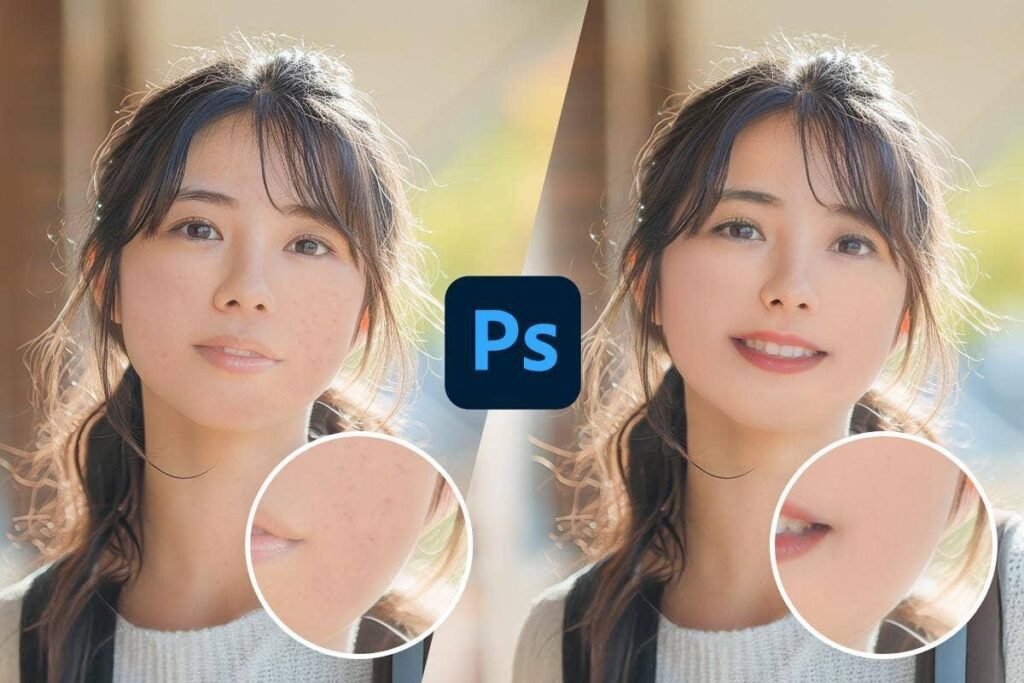
AI also reduces the learning curve for beginners. Someone with limited Photoshop experience can generate professional-looking edits simply by describing what they want in plain language. For example, typing “replace cloudy sky with sunset” produces several realistic options without requiring advanced masking skills.
However, AI isn’t replacing creative professionals. Instead, it acts as an intelligent assistant that accelerates repetitive work while leaving artistic decisions in human hands. Designers still choose compositions, refine details, adjust colors, and ensure that final images align with brand identity and project goals.
As Adobe continues improving Firefly models, Photoshop is evolving from a traditional editing application into a collaborative creative platform where AI enhances—not replaces—human creativity.
Why Adobe Firefly Makes a Difference
Adobe Firefly is the AI engine powering Photoshop’s newest generative capabilities. Unlike many standalone AI image generators, Firefly integrates directly into Photoshop, allowing users to edit existing images rather than creating visuals from scratch.
One of its biggest advantages is commercial safety. Adobe has trained Firefly using licensed and Adobe Stock content, making generated assets more suitable for professional and commercial projects. This gives businesses greater confidence when using AI-generated elements in advertisements, websites, product listings, and marketing campaigns.
Firefly also preserves editing flexibility. Every generated variation remains editable through Photoshop layers, allowing designers to fine-tune results instead of starting over. This non-destructive workflow is especially valuable for professionals managing complex design projects.
Another important benefit is consistency. Because Firefly works inside Photoshop, AI-generated edits blend naturally with traditional editing tools such as adjustment layers, masks, blending modes, and smart objects. Rather than replacing Photoshop’s capabilities, Firefly expands them into a more intelligent creative workflow.
Essential AI Tools Available in Photoshop
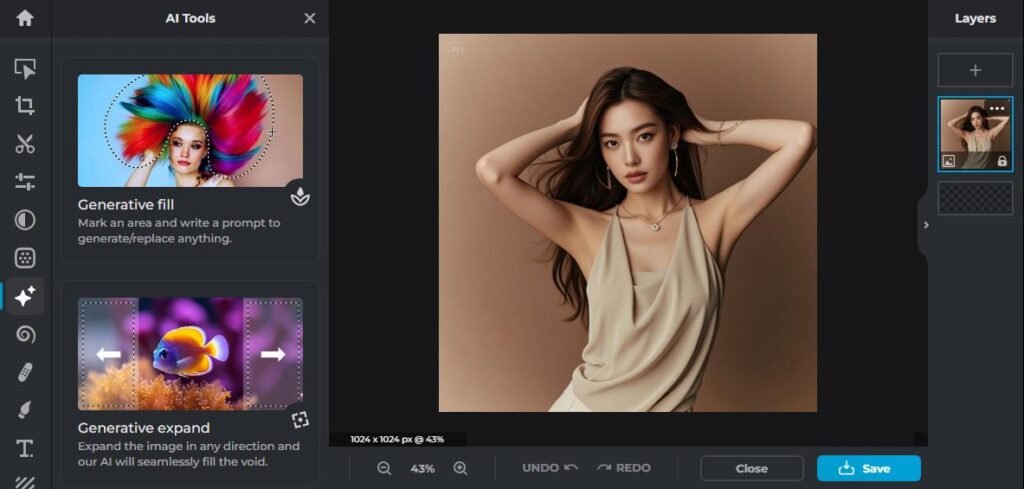
Photoshop now includes several AI-powered features designed for different editing scenarios. Understanding each tool helps you choose the most effective solution for your project instead of relying on a single feature.
Generative Fill
Generative Fill is one of Photoshop’s most powerful AI tools. After selecting an area of an image, users can either leave the prompt blank to intelligently remove objects or enter descriptive text to replace or add entirely new elements.
For instance, you can remove distracting tourists from a travel photo, replace a plain background with a tropical beach, add realistic furniture to an empty room, or insert decorative elements into marketing graphics. Photoshop generates multiple variations, allowing you to choose the one that best fits your composition.
The quality of results depends heavily on image resolution, prompt clarity, and available visual context. Short, descriptive prompts generally produce more consistent outcomes than long or overly complex instructions.
Generative Expand
Generative Expand solves one of the most common design challenges—changing image dimensions without awkward cropping. Whether you’re converting a horizontal photo into a vertical Instagram Story or creating banner graphics, AI intelligently extends the missing portions of the image.
Instead of stretching pixels, Photoshop generates entirely new content that matches surrounding textures, lighting, perspective, and objects. Landscapes, architecture, interiors, and environmental scenes often produce remarkably natural results.
This feature is especially valuable for content creators who need one image adapted across multiple platforms with different aspect ratios.
Remove Tool and Neural Filters
The AI-powered Remove Tool intelligently detects unwanted objects and replaces them using surrounding image information. Compared to traditional healing brushes, it produces cleaner results with significantly less manual effort.
Neural Filters offer another layer of AI enhancement. These filters can smooth skin, restore old photographs, colorize black-and-white images, adjust facial expressions, and improve portraits while preserving natural-looking details.
Although Neural Filters can save considerable editing time, professionals usually apply them conservatively to avoid an artificial appearance.
Step-by-Step: How to Use AI in Photoshop Effectively
Using Photoshop’s AI features becomes much easier once you understand a structured workflow. Rather than randomly experimenting with different tools, following a logical editing process helps you achieve more accurate and professional results.
Step 1: Prepare Your Image
Begin by opening a high-resolution image whenever possible. AI performs better when it has enough visual information to analyze textures, lighting, shadows, and object boundaries. Duplicate your original layer so every AI edit remains non-destructive and reversible.
Carefully examine the image before making changes. Decide whether your goal is removing distractions, extending the background, replacing objects, enhancing portraits, or creating an entirely new composition. Having a clear editing objective prevents unnecessary revisions later.
Step 2: Select the Right AI Feature
Different editing tasks require different AI tools. Use Generative Fill for adding or replacing objects, Generative Expand for resizing images, Remove Tool for eliminating distractions, and Neural Filters for portrait improvements or restoration work.
When using text prompts, keep instructions simple and descriptive. For example, phrases like “wooden table,” “mountain landscape,” or “modern office interior” often generate more accurate results than lengthy sentences.
After Photoshop generates several variations, compare each carefully instead of accepting the first option. Minor differences in lighting, perspective, or composition can significantly affect the final image quality.
Finally, refine AI-generated content with traditional Photoshop adjustments such as color correction, masking, dodge and burn, sharpening, and blending techniques. Combining AI with manual editing consistently produces the most polished professional results.
Advanced AI Workflows for Faster and Smarter Editing
Once you’re comfortable with Photoshop’s AI features, the next step is learning how to combine them into an efficient workflow. Professional designers rarely rely on a single AI tool. Instead, they layer multiple AI capabilities with traditional Photoshop techniques to produce polished, high-quality visuals.
A common workflow starts with the Remove Tool to eliminate distractions such as unwanted people, wires, or background clutter. Next, Generative Fill can replace or add objects that improve the composition, while Generative Expand adjusts the canvas size for different social media platforms or marketing materials. Finally, manual adjustments—such as curves, color grading, sharpening, and masking—ensure the generated content blends naturally with the original image.
For e-commerce businesses, AI can quickly create clean product photos by removing messy backgrounds, extending studio backdrops, and generating lifestyle scenes without arranging expensive photo shoots. Content creators can also transform one image into multiple formats for Instagram, YouTube thumbnails, Facebook ads, and website banners within minutes.
Marketing teams benefit from AI by producing campaign assets much faster. Instead of creating every variation manually, they can generate multiple concepts, test different creative directions, and finalize the strongest option. This speeds up production while allowing designers to focus on branding and storytelling rather than repetitive editing tasks.
The key to success is treating AI as an assistant rather than a replacement. Human creativity remains essential for choosing the best composition, maintaining visual consistency, and ensuring that every edit supports the intended message. The best results come from combining AI’s speed with professional design judgment.
AI vs Traditional Photoshop Editing
| Feature | AI Editing | Traditional Editing |
|---|---|---|
| Editing Speed | Very Fast | Time-Consuming |
| Skill Requirement | Beginner Friendly | Intermediate to Advanced |
| Object Removal | Automatic | Manual Selection Required |
| Background Replacement | Text Prompt Based | Masking & Pen Tool |
| Image Expansion | AI Generated | Manual Reconstruction |
| Creative Flexibility | High | Very High with Experience |
| Best For | Fast Production | Detailed Professional Control |
AI dramatically reduces repetitive work, but traditional Photoshop skills still provide unmatched precision for complex projects. Most professionals combine both approaches instead of choosing one over the other.
Real-World Examples of Using AI in Photoshop
Photoshop’s AI features are already transforming creative work across industries. Understanding practical use cases makes it easier to identify where AI can improve your own workflow.
A freelance photographer covering weddings can quickly remove distracting background objects, replace cloudy skies with vibrant sunsets, and improve portraits without spending hours on manual retouching. This allows them to deliver galleries faster while maintaining professional quality.
An online store owner can photograph products on a simple white table and then use Generative Fill to create premium lifestyle backgrounds that match seasonal marketing campaigns. Rather than scheduling multiple expensive photo shoots, they can generate several creative variations from a single product image.
Social media managers often need dozens of graphics for different platforms. AI-powered canvas expansion allows one image to be resized for Instagram posts, Stories, Facebook banners, LinkedIn graphics, and YouTube thumbnails without awkward cropping or stretching.
Marketing agencies also use AI to produce concept visuals during brainstorming sessions. Instead of spending hours creating mockups, designers can quickly generate multiple ideas for clients and refine the strongest concepts into final campaign assets.
These examples highlight an important point: AI increases productivity rather than replacing creativity. Human expertise remains essential for selecting the best ideas, maintaining brand consistency, and delivering polished final designs.
Benefits of Learning How to Use AI in Photoshop
Mastering AI-powered Photoshop tools offers advantages beyond simply saving time. It changes how creative professionals approach design, improves productivity, and opens new opportunities for experimentation.
One of the biggest benefits is speed. Tasks that previously required careful masking, cloning, and retouching can now be completed in minutes. Designers can spend less time on repetitive work and more time developing creative concepts.
AI also lowers the barrier to entry for beginners. People with limited Photoshop experience can perform advanced edits through intuitive tools and text prompts instead of learning dozens of complex techniques immediately.
Businesses benefit through reduced production costs. Marketing teams can create promotional materials faster, photographers can increase client capacity, and content creators can publish visuals more consistently across multiple channels.
For creators who use AI beyond Photoshop, platforms like MakeAINow can complement their workflow by offering AI writing, image generation, coding assistance, speech-to-text, and chatbot capabilities in one place. Combining specialized tools with Photoshop’s AI features can help improve overall productivity and simplify creative projects.
Another major advantage is creative flexibility. AI encourages experimentation by making it easy to test different backgrounds, compositions, lighting conditions, and design concepts. Because edits remain non-destructive, users can compare multiple variations without permanently altering the original image.
For professionals, AI becomes a competitive advantage. Clients increasingly expect fast turnaround times while maintaining high-quality standards. Designers who understand both AI and traditional Photoshop workflows are better positioned to meet these expectations efficiently.
Risks and Limitations of Photoshop AI
Despite its impressive capabilities, AI is not perfect. Understanding its limitations helps users avoid unrealistic expectations and produce more reliable results.
Generated content may occasionally contain unrealistic textures, distorted objects, inconsistent lighting, or inaccurate proportions. Complex scenes with overlapping elements can still require manual corrections after AI processing.
Another limitation involves prompt quality. Vague instructions often produce unpredictable results, while detailed yet concise prompts usually generate more accurate images. Learning prompt writing is becoming an important creative skill alongside traditional editing techniques.
Businesses should also consider ethical and legal factors. Although Adobe Firefly is designed with commercially safer training data, users should still verify that generated content aligns with copyright policies, client requirements, and brand guidelines.
Overreliance on AI can also reduce creative originality. Designers who simply accept generated results without refinement risk producing generic-looking visuals. Human creativity remains essential for storytelling, branding, and emotional impact.
Finally, some AI features require an internet connection and compatible Creative Cloud subscriptions, which may limit access for certain users.
Common Mistakes Beginners Should Avoid
Many new users expect AI to produce flawless edits instantly. In reality, Photoshop AI performs best when paired with thoughtful decision-making and basic editing knowledge.
A common mistake is writing overly complicated prompts. Instead of long descriptions, use short, specific phrases that clearly describe the desired object or scene.
Another issue is working with low-resolution images. AI has less visual information to analyze, often resulting in lower-quality outputs. Whenever possible, begin with high-resolution source files.
Some users also skip manual refinements after AI generation. Even excellent AI results usually benefit from color correction, blending adjustments, sharpening, and masking to achieve a professional finish.
Finally, avoid replacing every traditional editing technique with AI. Understanding selections, layers, masks, adjustment layers, and composition remains valuable because these skills complement AI rather than becoming obsolete.
Expert Insights for Better AI Editing Results
Professional designers generally follow a simple principle: use AI to accelerate production, not to replace craftsmanship.
Start each project by defining the creative objective before generating content. AI performs best when it solves a specific problem rather than producing random ideas.
Experiment with multiple generations before choosing the final result. Small differences between variations often determine whether an edit looks realistic or artificial.
Keep learning traditional Photoshop techniques alongside AI features. The strongest portfolios usually combine automation with professional editing expertise.
If you’re new to artificial intelligence in creative software, our guide on how do i use ai provides a broader understanding of AI fundamentals before exploring advanced Photoshop workflows.
Frequently Asked Questions
1. Is Photoshop AI free to use?
Most AI features require a compatible Adobe Creative Cloud subscription and access to Adobe Firefly services.
2. Do I need design experience to use Photoshop AI?
No. Beginners can use AI tools effectively, although learning Photoshop fundamentals will improve results significantly.
3. Can AI replace professional photo editors?
AI automates repetitive tasks, but creative direction, branding, storytelling, and advanced retouching still require human expertise.
4. Which Photoshop AI feature is best for beginners?
Generative Fill is usually the easiest starting point because it handles object removal, replacement, and scene generation with simple text prompts.
5. Does Photoshop AI work for commercial projects?
Adobe Firefly is designed to support commercial use, but users should always review Adobe’s licensing terms and verify content before publishing.
6. Can AI improve old or damaged photographs?
Yes. Neural Filters and AI-powered restoration tools can repair scratches, enhance portraits, improve colors, and restore historical photographs.
Final Verdict
Learning how to use AI in Photoshop is one of the most valuable skills for modern creators. Adobe’s AI-powered features simplify complex editing tasks, reduce production time, and make professional-quality image editing accessible to users of all experience levels.
However, the most successful designers don’t rely solely on automation. They combine AI-generated suggestions with traditional Photoshop techniques to create visuals that are polished, original, and aligned with their creative goals.
As Adobe continues expanding Firefly’s capabilities, AI will become an even more integral part of digital design workflows. By mastering these tools today while continuing to strengthen your creative judgment, you’ll be well prepared for the future of photo editing and visual content creation.